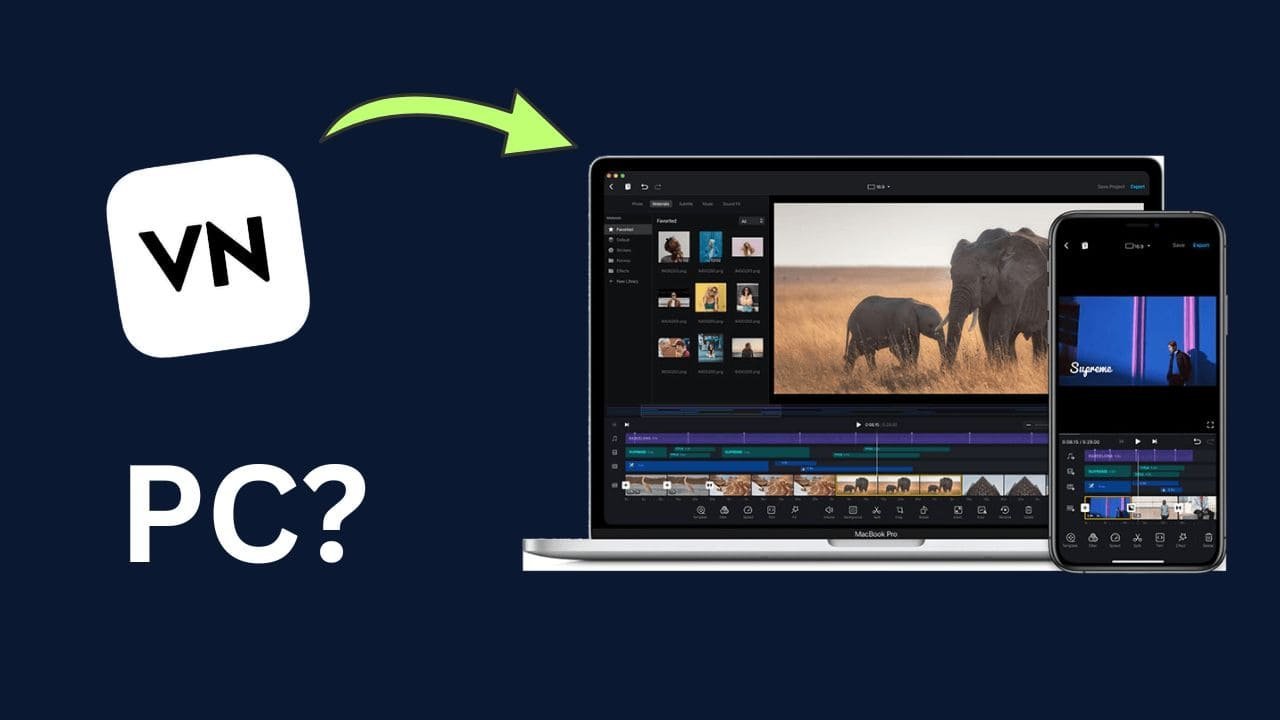
Why use VN Video Editor on PC? This question comes to everyone’s mind, even though editing can be done on a smartphone. However, there are many reasons to answer this. First, let’s understand why VN is the best and how you can use VN Video Editor for PC.
It’s completely free, has no watermark (even in the free version!), and has powerful features – multi-layer timeline, keyframes, chroma key, speed curves, and 4K export. The latest update in 2025 also includes AI tools like auto captions and improved effects. The main reason for editing on a phone is that the VN app is currently only available for Android and iOS. It hasn’t officially arrived for PC yet, but we’ll show you how to use it on PC.
VN Video Editor App
If you’ve used VN Video Editor on your mobile device, but you have a PC and want to use it on your PC, like other software from Capcut, Filmora, or Adobe, we’ll provide a full guide on how to use it.
Although there isn’t a dedicated VN PC software for Windows or Mac yet, even in 2026, people are already using it comfortably on PC, and we’ll explain the correct method.
What is VN Video Editor?
VN Video Editor is a free video editing app designed specifically for those who create Reels, Shorts, and YouTube videos, want simple yet professional-level editing, and want to work without watermarks.
See More: VN App Full Tutorial: Beginner to Pro level Editing Guide
It’s especially popular on mobile devices because of its simple editing interface and the wide range of features available.
VN Video Editor PC Install Guide
VN Video Editor for PC hasn’t been officially released yet, but you can use the VN app via an Android emulator.
| Detail | Information |
|---|---|
| Developer | Ubiquiti Labs, LLC (official name: VN Video Editor Maker – VlogNow) |
| Platforms (Official Native) | Android, iOS, macOS (available on Mac App Store) |
| Windows PC Version | No official native Windows app |
| How to Use on Windows PC | Use an Android emulator (like BlueStacks, LDPlayer, or MEmu) to run the mobile version |
| Cost | Completely free (no watermark, even on exports) |
| Main Use | Easy video editing for vlogs, TikTok, Reels, YouTube Shorts – great for beginners |
What does an emulator do?
- It creates an Android phone-like environment within your PC.
- You can install and run VN apps within it.
VN Editor App: Best Emulator for PC
- BlueStacks (Most Popular)
- LDPlayer
- Nox Player
Tip: Even in 2026, most people prefer BlueStacks 64-bit because it runs smoothly for VN apps. Even if your PC is slow or lacks a lot of RAM, it still runs smoothly.
How to Install VN Video Editor on PC?
- Install Bluestacks from Chrome.
- Go to Bluestacks.com and download it.
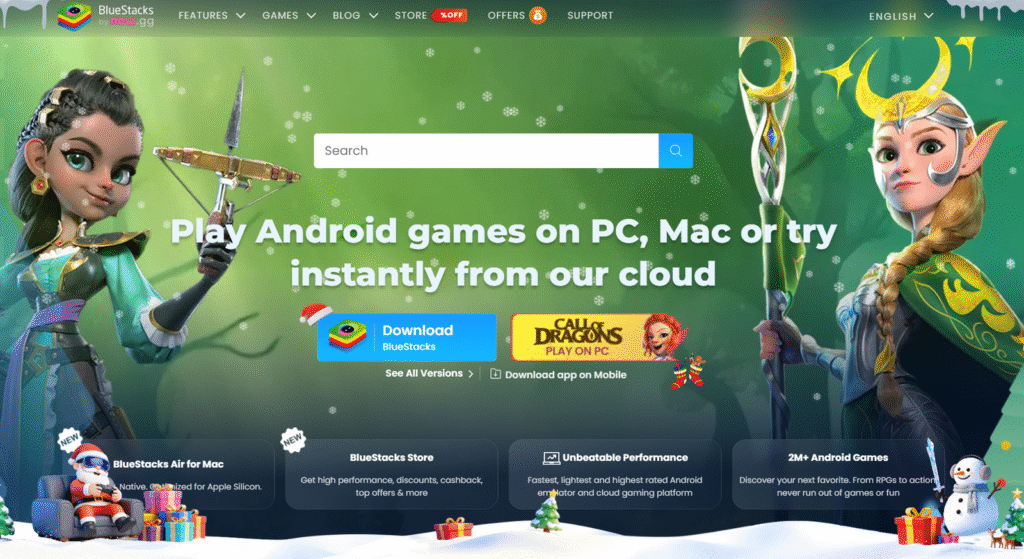
- Once the exe file is downloaded, wait for the installation to complete.
- Once the installation process is complete, you’ll need to wait for it to extract.
- Bluestacks will automatically launch after installation.
- Install VN Video Editor
- Go to Google Play to install VN. If it asks you to sign in via Gmail, you can download it only after completing that.
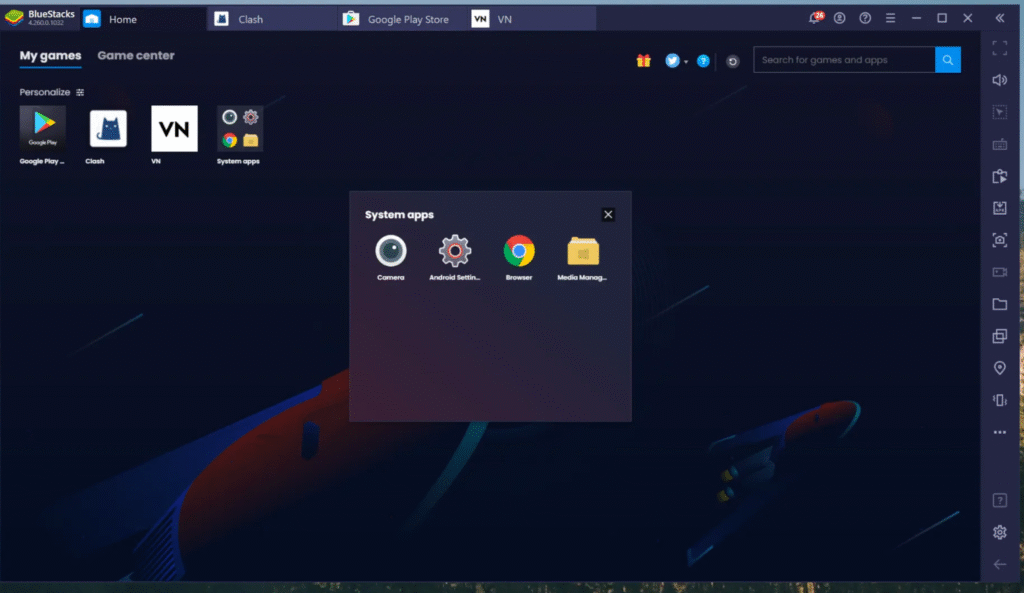
- After signing in to the Play Store, search for VN Video Editor in the search bar and the app will appear.
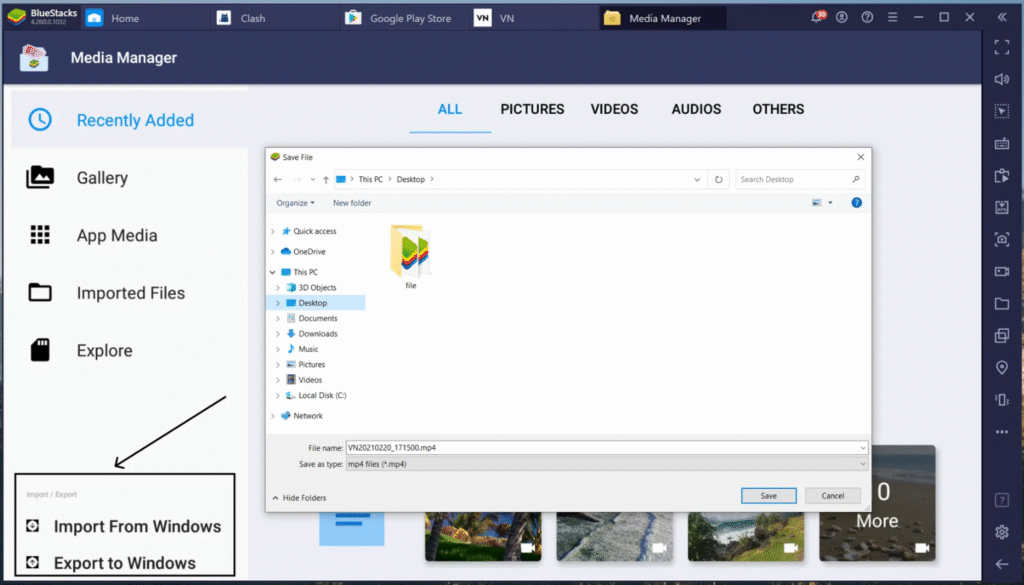
- Import / Export Footages
- Now you need to open the VN app in the emulator.
- Open the media manager to import footage or VN project files for editing.
- You can now also export your VN edited videos to Windows.
VN Video Editor PC – Pros and Cons
Advantages:
- Free
- No watermark
- Timeline large and clear
- Editing feels fast
Disadvantages:
- Emulator can make PC feel heavy
- Lags on low-RAM PCs
- Not as smooth as direct PC software
If you have:
8GB of RAM or more
SSD
The experience will be fine.