Welcome to the VN App Full Tutorial. We’re talking about video editing with the VN App on the TechSCX Video Edit website. Video editing has become incredibly easy for anyone, whether it’s creating Reels or editing any kind of viral video.
This will be especially easy for smartphone editors, as video editing software like Adobe and Filmora are available for PCs, but there are even simpler video editing apps that anyone can use to create their own Reels. Whether you’re creating Instagram Reels, YouTube Shorts, cinematic travel edits, or AI story reels — the VN App offers every feature you can use.
In today’s article, we’ll walk you through the VN App Full Tutorial and how to go from Beginner to Pro, all of which we’ll share on the sushilprotips.com/ website.
VN App Full Tutorial By TechSCX
Since 2020, VN App has been providing editing experience, tested settings, pro techniques, and simple video editing features. It can be considered an alternative to Capcut. The tutorials in this VN App are easy for beginners and intermediate/pro editors.
Why VN App is the Best Editing App in 2025
The most frequently asked question is why VN App, there are other apps too. But from my experience, VN App is a very good application in itself. With just one VN code, you can edit an entire video by simply adding photos and videos, without adding any filters or effects.
I’ve used apps like CapCut, Kinemaster, and Alight Motion, but VN’s features set it apart:
- No watermark
- Desktop-like timeline
- Accurate beat sync
- Clean color grading tools
- AI editing features (2025 update)
- Ultra-fast exporting
- Templates + custom presets
Professional editors also love VN because it offers the perfect balance of manual control, speed, and stability.
As I explain more about this VN app, I’ll try to cover all its components and explain how it works from the beginning.
VN App Guide with Parts
Part 1: How to Download the VN App?
The VN App is available on both Android and iOS, so you can search for “VN Video Editor” from the Play Store/App Store and install it.
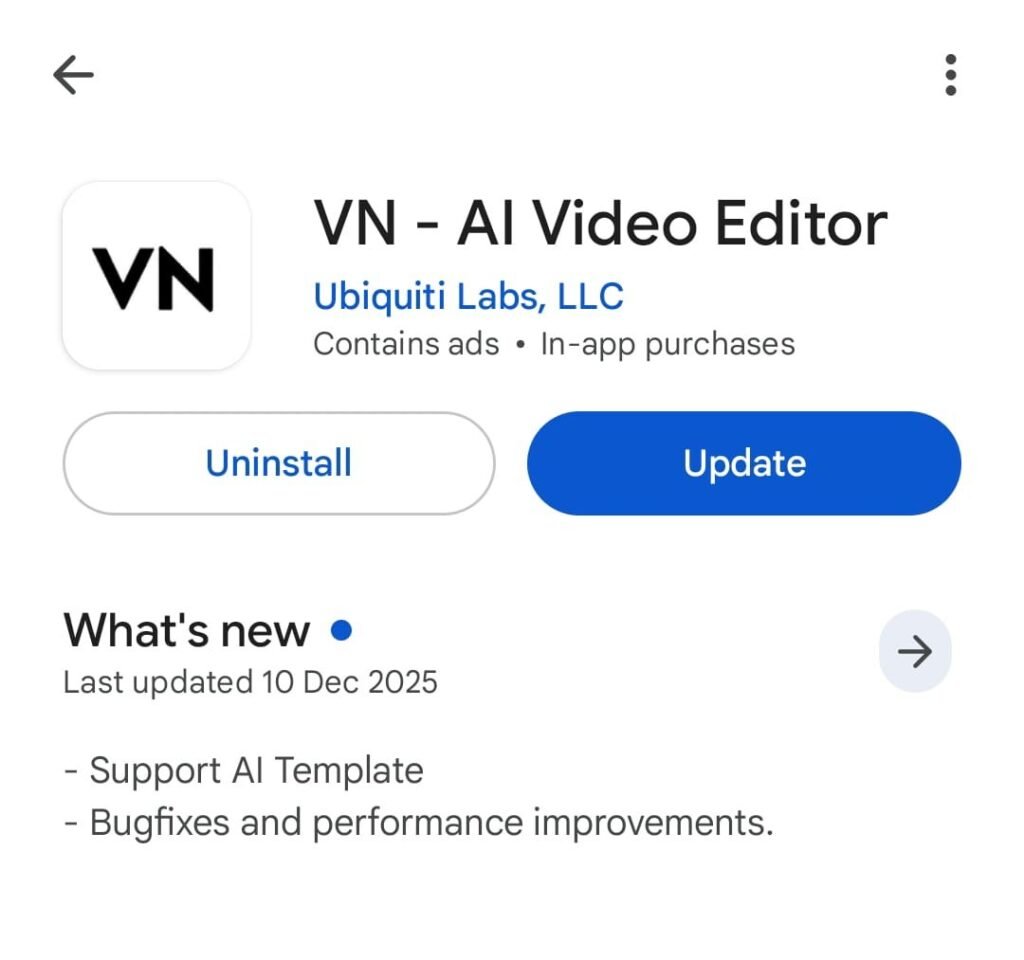
Opening the app, you’ll see the home screen—Tutorials, Templates, Drafts, and a plus (+) icon at the bottom.
Part 2: About the VN App Interface
VN has undergone several UI improvements in 2025, but the app’s interface remains very simple and understandable.
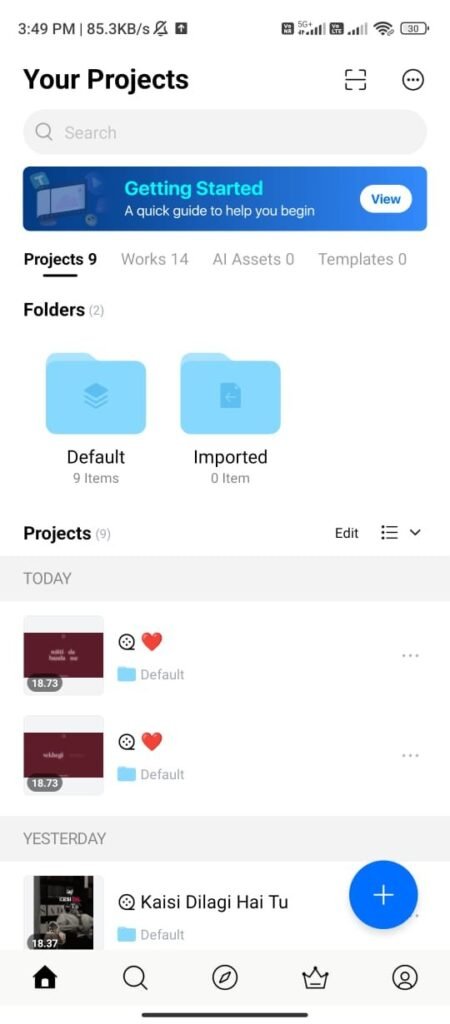
Part 3: Create your first project.
Click the plus (+) icon below, click New Project, select any of your photos or videos, and click Next.
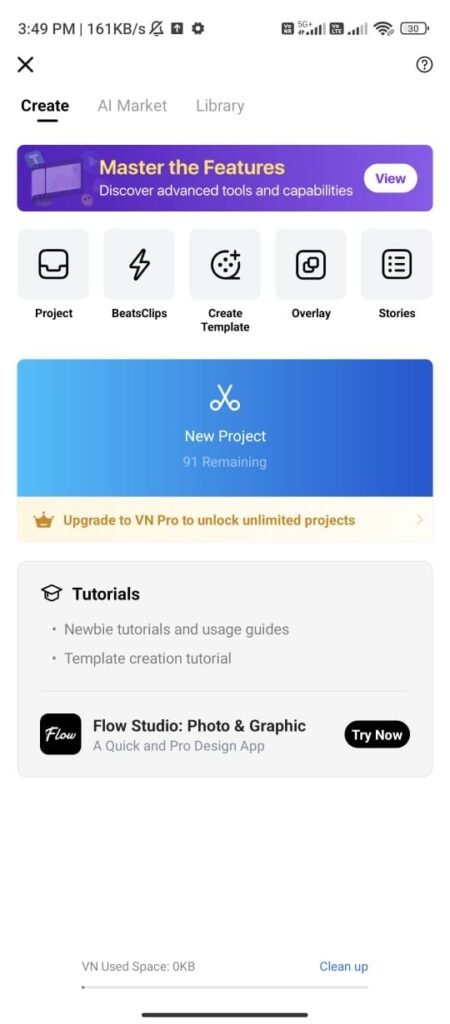
You’ll then see your timeline, toolbar, and Original Ratio settings. You can select them as desired and edit them based on the type of video.
Part 4: How to do basic editing?
Managing Video Clips (Trimming, Splitting, and Deleting)
Trimming: How to shorten or lengthen a clip by dragging the beginning and end.
Splitting: How to cut the middle part of a clip.
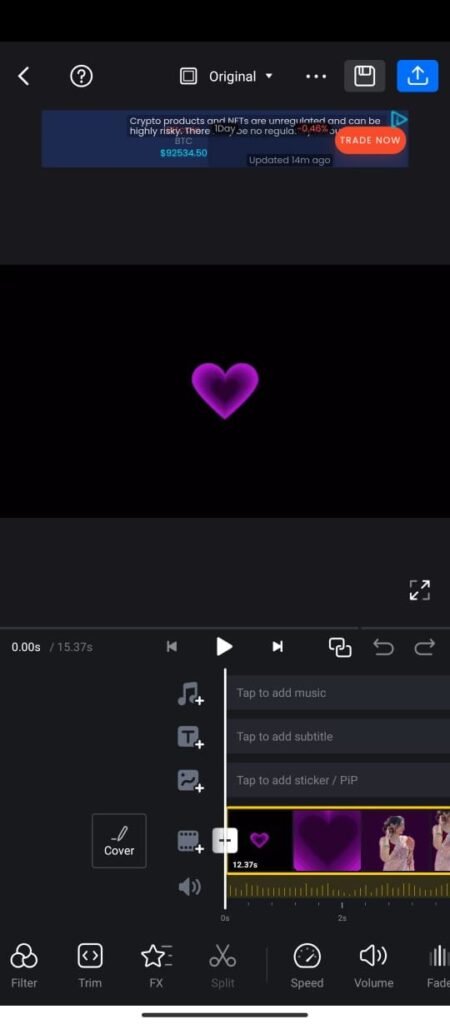
Deleting: How to delete any unwanted parts (and don’t forget to delete the “End Screen”).
Zoom/Pan: Zoom in/out of the video on the timeline with two fingers.
Transition and Effects (Bringing Life to Videos)
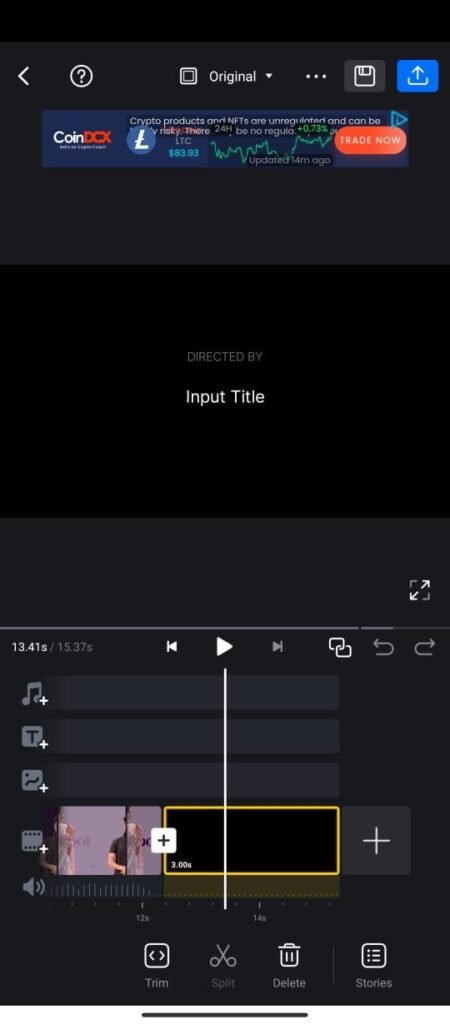
Transition: Learn how to apply transitions like Fade, Zoom, and Black/White by clicking the white plus icon between two clips.
Effects (FX): Use the FX tool to apply effects like Zoom in, Shake, and Glitch to a single clip.
Volume, Speed, and Filters/Adjustments
Volume: Increase or decrease the volume of the video.

Speed: Create slow or fast motion using the “Curve” tool (this is also a bit advanced, but we’ll cover the basics).
Filters and Adjustments: Improve the video’s color (Brightness, Contrast, Saturation) and use ready-made filters.
Part 5: Adding Audio and Text
How to Add Music and Sound Effects?
Top Bar (T) Layer: Import music or sound effects from here.
Music Library: Access VN’s free music library.
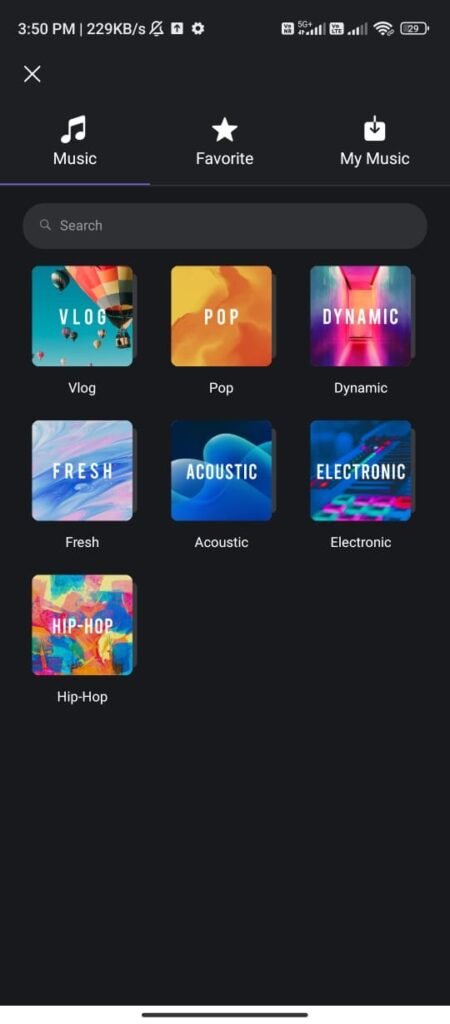
Voice Over: Record your voice directly in the app.
Text and Subtitles (Text)
Text Tool (T): Adding a text layer.
Font, Color, and Background: How to stylize text.
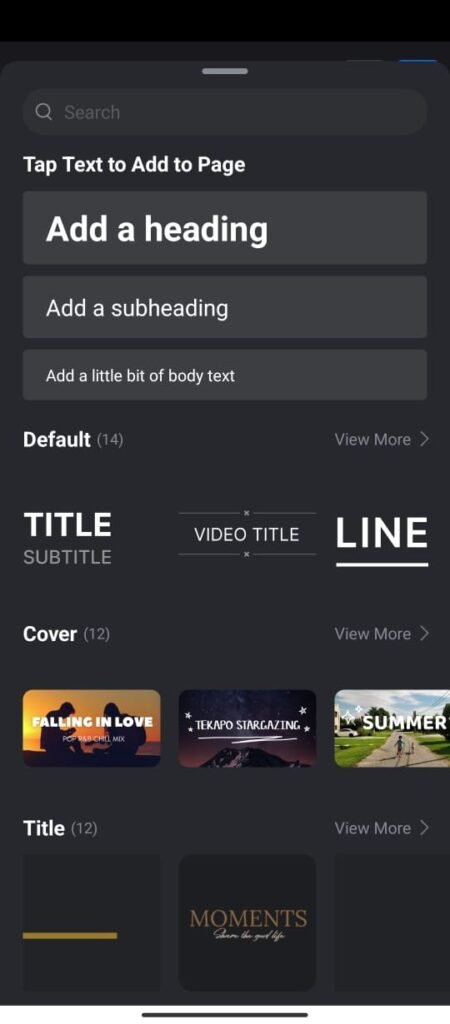
Text Animation: How to move text and give it entry/exit effects.
Part 5: Color Grading
Basic Color Controls:
- Exposure
- Contrast
- Saturation
- Highlights/Shadows
Advanced Tools:
✔ HSL (Hue, Saturation, Luminance)
✔ Curves
✔ LUTs
✔ Temperature/Tint
Popular 2025 Color Styles:
1. Cinematic Teal & Orange
Exposure -5
Contrast +20
Temperature -10
Saturation +5
2. Aesthetic Soft Pastel
Highlights -10
Shadows +15
Tint +8
Grain +20
3. Travel Vibrant Look
Saturation +20
Sharpen +15
Vibrance +18
Part 6: Learn Pro-Level Editing
Layered Editing: PIP (Picture in Picture)
Video/Photo Layer: How to add a video or photo from a layer above.
Green Screen (Chroma Key): Removing the background using the Chroma Key tool.
Masking: Displaying a portion of a video within a shape (circle, rectangle).
- Keyframe Animation
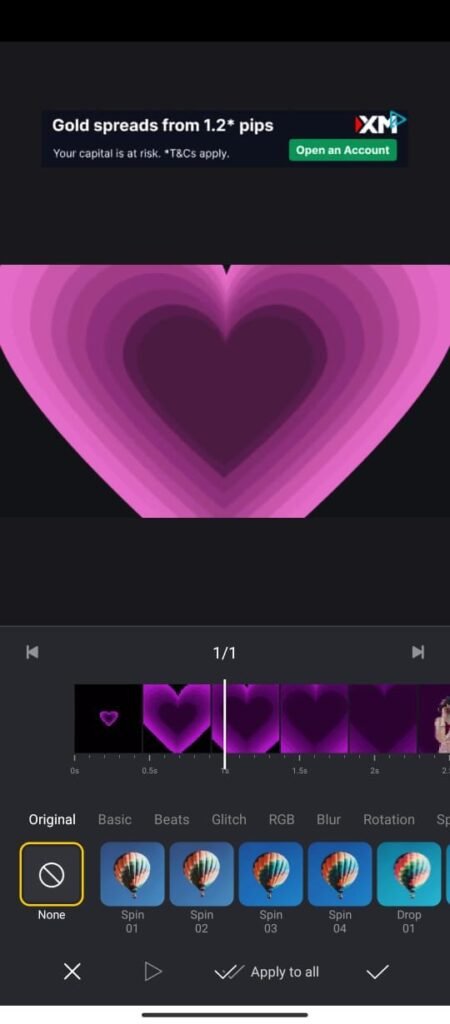
Keyframe: This is a technique that allows you to change the position, scale, rotation, and opacity of anything (such as a photo, text, or sticker) over time.
Using Keyframes: Click the Keyframe icon on the video layer to make an object move. This feature is the most powerful.
- Curve Speed (Smooth Slow-Motion)
Curve Speed: This is an advanced version of the Speed tool. You can create your own curves and adjust the speed very smoothly.
Part 7: What Export Settings to Keep
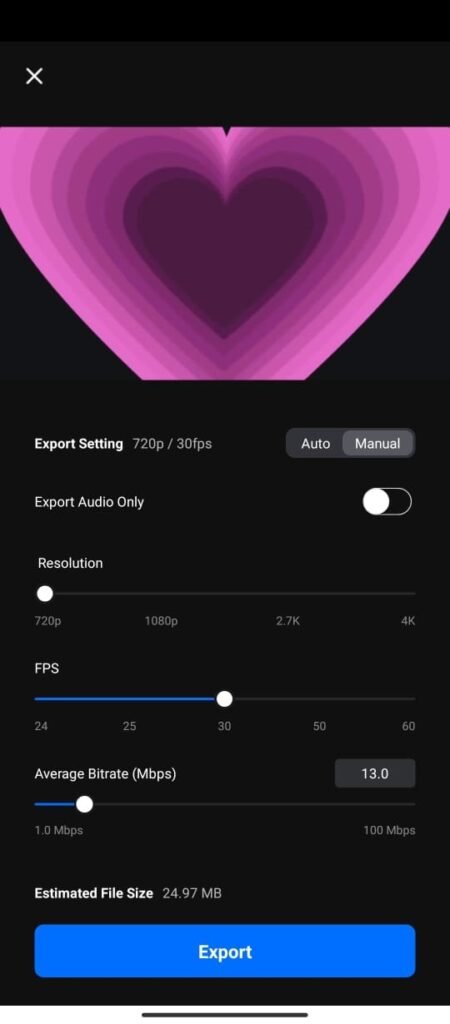
For Instagram Reels:
Resolution: 1080p
FPS: 60
Bitrate: 8–12 Mbps
Format: MP4
For YouTube Shorts:
Resolution: 2160p (4K optional)
FPS: 60
Bitrate: 16–20 Mbps
What mistakes do people make with the VN App?
We apply too many filters during editing, which makes it unpleasant for users to see.
To make a photo or video look good, we use oversaturated colors, which completely alters the video experience.
- The shorter the video, the better, so avoid using long clips.
- The less lighting in a video, the less it will perform.
- People don’t get the timing right when editing sound effects or music.
- Poor export settings: I often see that the quality isn’t high.
VN App 2025 New Features
- AI Auto Cut
Smartly breaks up long clips.
- AI Color Match
Makes the color tone of all clips the same.
- AI Scene Detection
Automatically cuts on scene change.
- AI Background Clean-up (NEW)
Perfect for portrait shots.
Conclusion
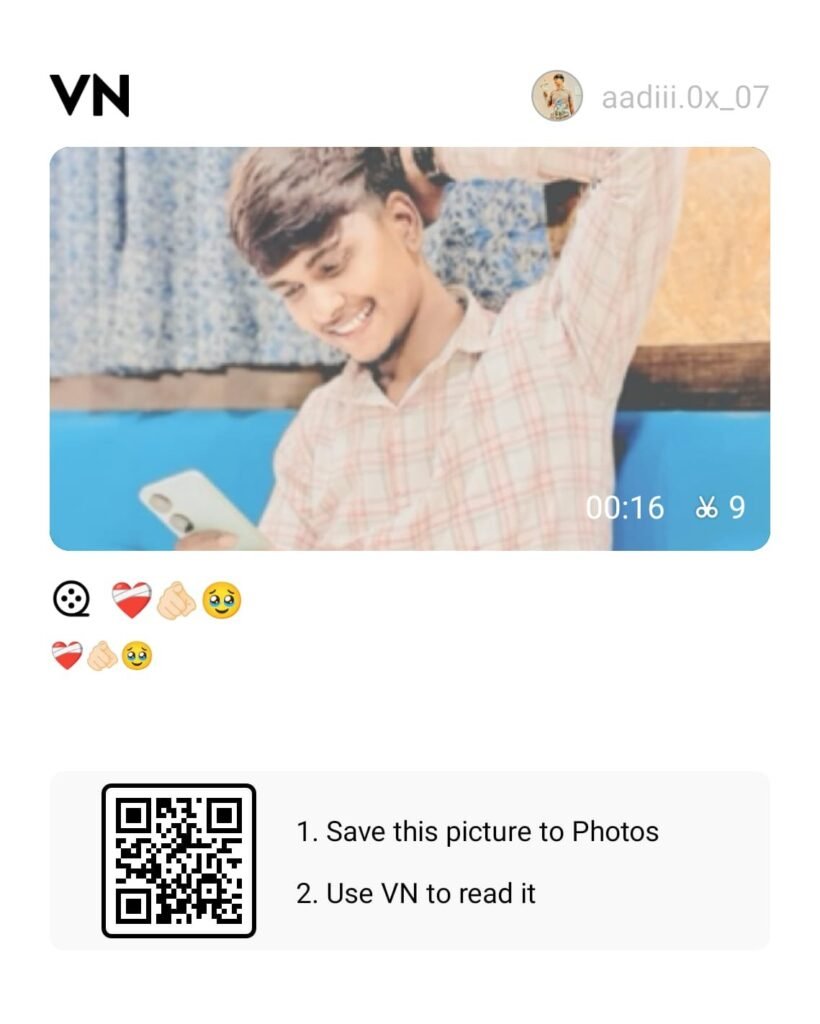
VN App Full Tutorial: Today we shared information on this TechSCX website. If you’ve been looking for information about VN App Editing, you’ll have understood everything we’ve explained. Editing videos with the VN App is very easy, and you can share or use anyone’s edits using their VN code.
If a friend has created a good video, you can share it by sharing the code from their project. Many trending edits are shared on Instagram Reels, so you can connect with them.